A prompt needs the right references
A generic instruction such as “make a basketball dunk” leaves the model to invent the move. To recreate this particular basketball middle finger video, our workflow starts from the nine-second motion reference and identifies the two players before editing the video.
The sample at the top was made with GPT Image 2.5 for the two-person still, followed by Seedance 2.5 in video-edit mode. The blocks below are readable English adaptations of those role-mapping instructions. They explain the workflow; the generator applies its configured instructions for you.
| Input | Purpose |
|---|---|
| Image 1 | One clear photo of the adult attacker. |
| Image 2 | A separate photo of the adult defender. |
| Opening frame | The original court, camera angle and the two player positions. |
| Motion reference | The full nine-second sequence, including the airborne taunt and back-facing shot. |
Use photos of two different people, with permission. A model or interface needs to support the relevant image references and video editing. The labels “Image 1” and “Video 1” must refer to the actual uploads in that interface.
Stage 1: the two-person image prompt
For this step, Image 3 is the source opening frame. It fixes the scene and the left/right assignment. The two portrait photos supply the identities.
Use Image 3 as the basketball court and opening-frame reference. Replace the left foreground ball-handler in the red jersey with the adult in Image 1. Replace the right foreground defender in the white top and dark shorts with the adult in Image 2. Keep each face and hairstyle recognizable. Preserve the two positions, poses, camera angle, court, hoop, ball and crowd. Do not swap the identities or replace spectators. Return one full-scene image, not a collage.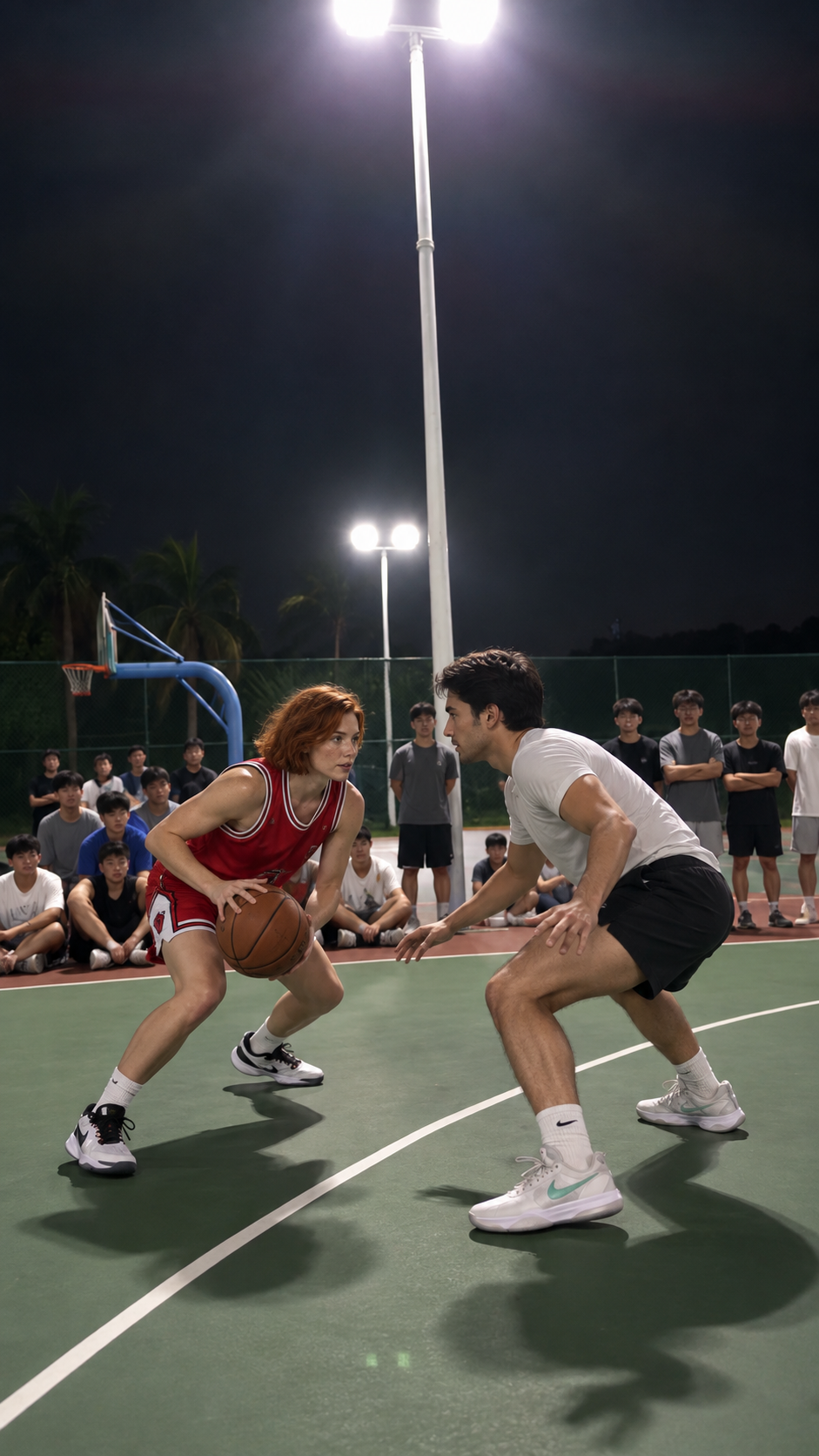
Inspect both faces before proceeding. A still that already puts the wrong person in either role should be corrected before it becomes a video reference. Clothing can differ from the portraits: the primary checks are the two identities and their positions.
Stage 2: the Seedance video-edit prompt
For the video step, Image 3 now means the approved two-person preview, alongside the two original photos. Video 1 is the motion reference. This gives the model both the original choreography and a visual example of the replacement cast.
Edit Video 1. Image 1 is the attacker, Image 2 is the defender, and Image 3 shows both people in their opening positions. Keep this assignment in every shot, including occlusion, the jump, the landing and the close-up. The player who walks toward the camera at the end is still Image 1.

Use Video 1 as the motion, timing and camera reference. Preserve the dribble, airborne split, middle-finger taunt, back-facing shot and walk toward the camera in the same order. Keep the court, hoop, ball and spectators. Replace only the two foreground players. Add no captions, watermark or audio.
Our current workflow uses video-edit mode, the reference duration, an adaptive frame shape and MP4 output, with audio generation off. It follows the existing motion instead of asking the model to invent a new sports highlight. The website handles reference preparation and task progress; there is no prompt box you need to fill in.
Why do the two faces sometimes swap?
The attacker can turn away from the camera, cross in front of the defender and reappear in a later shot. “Replace both people” leaves their identities loosely assigned. Our instructions identify the initial positions, keep the same assignment through occlusion and explicitly name the attacker in the final close-up.
| What to check | What to change before rendering |
|---|---|
| Attacker and defender reversed | Correct the upload order and check the opening preview. |
| Both players resemble one person | Use two distinct, clear portraits and confirm both are attached as references. |
| A normal dunk replaces the familiar move | Check that the full motion reference is supplied to a video-edit workflow. |
| The defender appears in the final close-up | Explicitly keep Image 1 as the attacker through the ending. |
| Preview already has the wrong face | Stop at the image stage. Do not approve it for video generation. |
A prompt is one part of the setup. Clear inputs, separate references and the preview checkpoint matter too. See the photo selection guide before starting.
Questions about the AI basketball prompt
Do I need to paste these prompts into Dunk on You?
No. Upload the attacker and defender, complete the purchase, then review the two-person preview. The generator runs the configured workflow.
Is reading the prompt free?
Yes. You can read this guide and watch the sample without paying. A personalized video on this site costs $9.90. Running a prompt in another model service uses that service’s own generation allowance or pricing.
Can I use only one photo?
This workflow requires two different people and two photos. It does not invent a random defender. Put yourself in the second slot if you want your friend to make the play.
Will this keep the exact clothes?
Our sample prioritizes the faces, roles and familiar action. The opening scene and generated frames can change clothing and small details. The visible sample is the best way to judge this version.
Put your two people in the play.
One purchase includes the two-person preview and finished MP4.
Choose your players — $9.90